关于 Visual Studio Code 使用的正确姿势

我已经通过 Visual Studio Code 配置了 C/C++,Python,现在由于工程学习的需要,准备再配置 Java 环境。
我根据 https://blog.csdn.net/rothschild666/article/details/125785468 完成了 VSC 的插件下载、Java JDK/JRE 的安装,但是在按照教程所示,以非调试模式执行时,调用了 C/C++ 的任务。
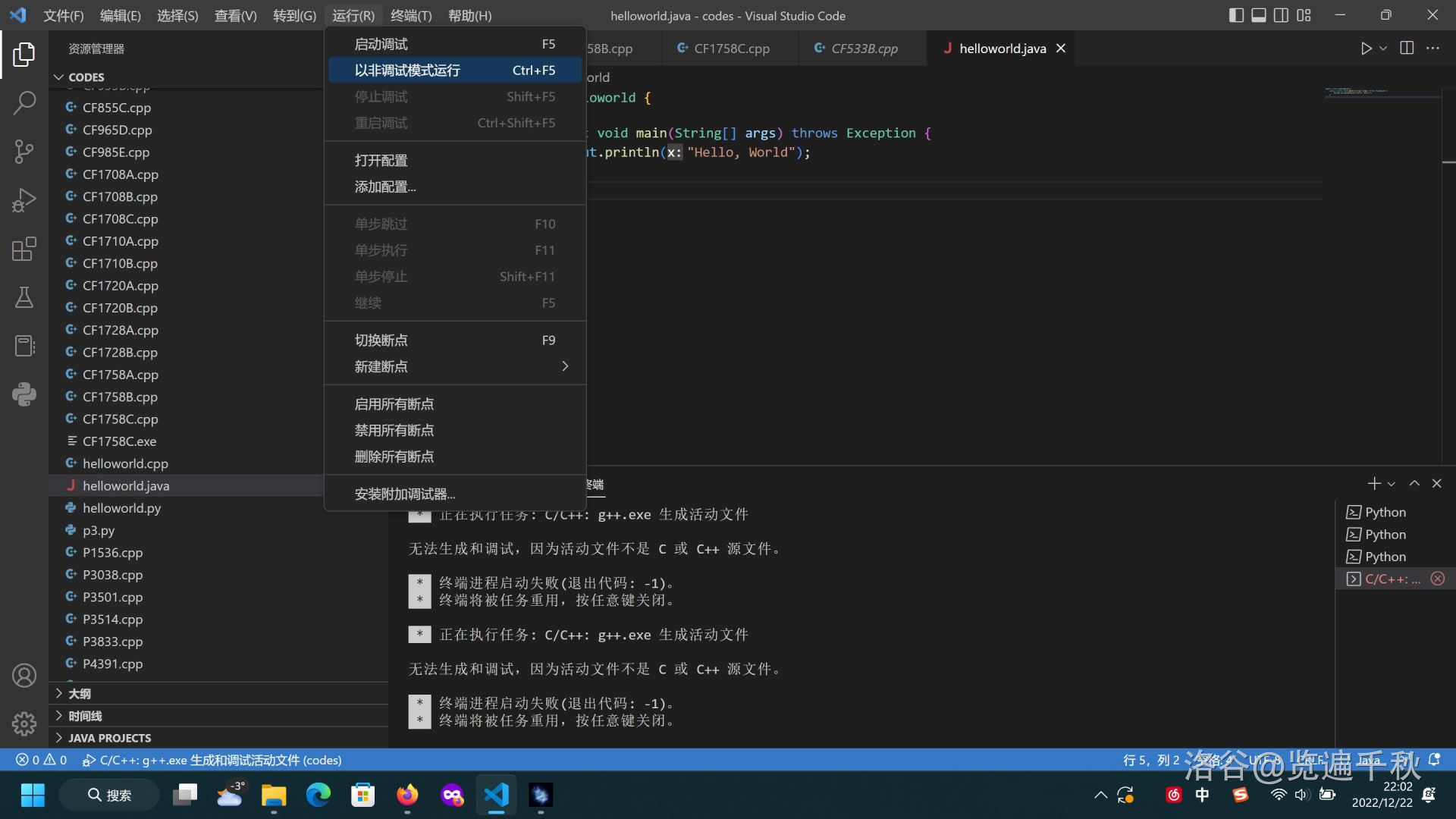
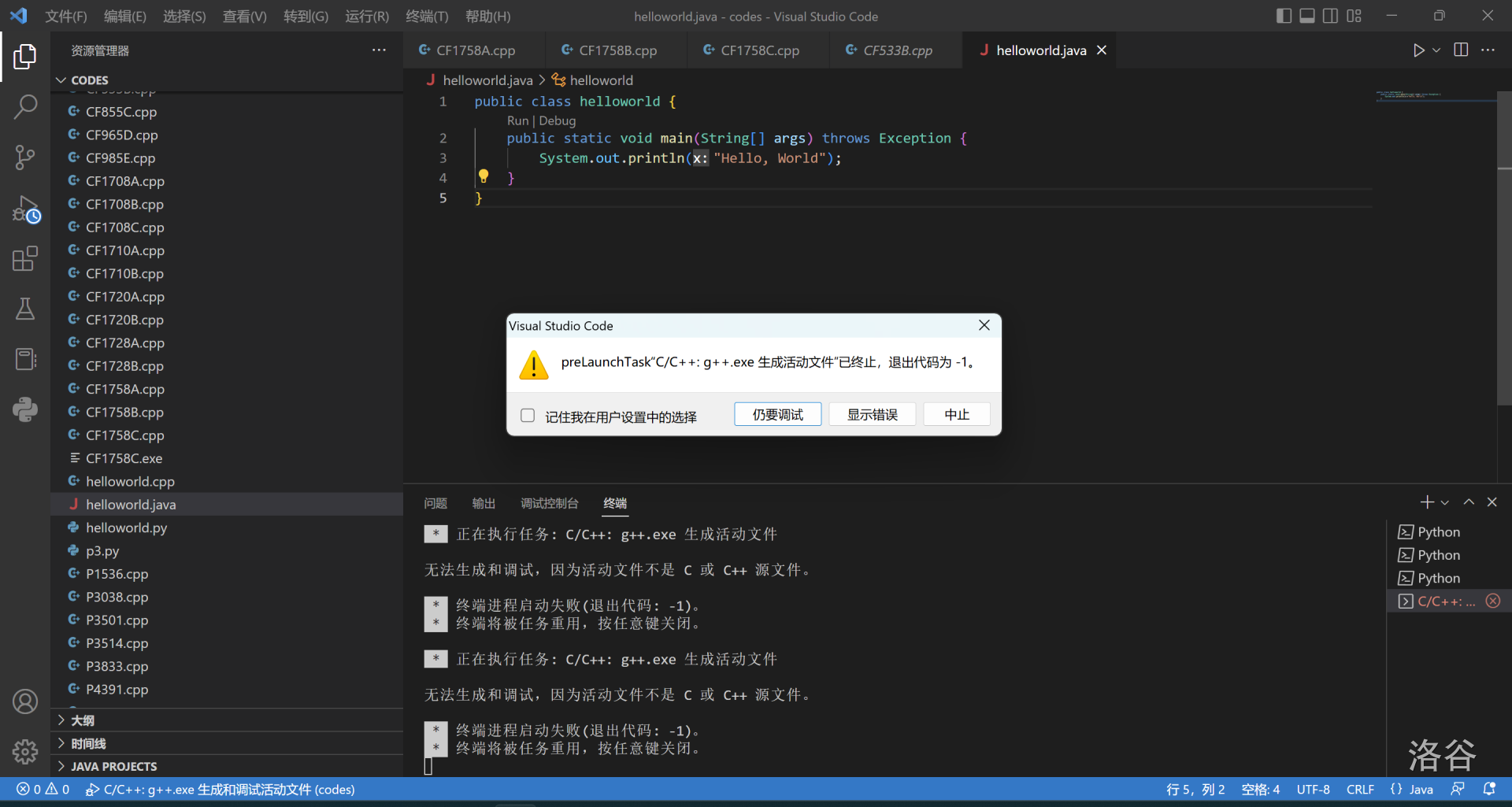
在 .vscode 文件夹下的文件和内容如下:
c_cpp_properties.json
{
    "configurations": [
        {
            "name": "Win32",
            "includePath": [
                "${workspaceFolder}/**"
            ],
            "defines": [
                "_DEBUG",
                "UNICODE",
                "_UNICODE"
            ],
            "compilerPath": "C:\\Program Files\\mingw64\\bin\\gcc.exe",
            "cStandard": "gnu17",
            "cppStandard": "gnu++14",
            "intelliSenseMode": "windows-gcc-x64"
        }
    ],
    "version": 4
}
launch.json
{
    "configurations": [
        {
            "name": "C/C++: g++.exe 生成和调试活动文件",
            "type": "cppdbg",
            "request": "launch",
            "program": "C:\\Windows\\System32\\cmd",
            "args": ["/C", "${fileDirname}\\${fileBasenameNoExtension}.exe", "&", "pause"],
            "stopAtEntry": false,
            "cwd": "${fileDirname}",
            "environment": [],
            "externalConsole": true,
            "MIMode": "gdb",
            "miDebuggerPath": "C:\\Program Files\\mingw64\\bin\\gdb.exe",
            "setupCommands": [
                {
                    "description": "为 gdb 启用整齐打印",
                    "text": "-enable-pretty-printing",
                    "ignoreFailures": true
                },
                {
                    "description": "将反汇编风格设置为 Intel",
                    "text": "-gdb-set disassembly-flavor intel",
                    "ignoreFailures": true
                }
            ],
            "preLaunchTask": "C/C++: g++.exe 生成活动文件"
        }
    ],
    "version": "2.0.0"
}
{
    "C_Cpp.errorSquiggles": "Disabled",
    "latex-workshop.latex.tools": [
        {
            "name": "xelatex",
            "command": "xelatex",
            "args": [
                "-synctex=1",
                "-interaction=nonstopmode",
                "-file-line-error",
                "-pdf",
                "%DOCFILE%"
            ]
        },
        {
            "name": "pdflatex",
            "command": "pdflatex",
            "args": [
                "-synctex=1",
                "-interaction=nonstopmode",
                "-file-line-error",
                "%DOCFILE%"
            ]
        },
        {
            "name": "bibtex",
            "command": "bibtex",
            "args": [
                "%DOCFILE%"
            ]
        }
    ],
    "latex-workshop.latex.recipes": [
        {
            "name": "xelatex",
            "tools": [
                "xelatex"
            ],
        },
        {
            "name": "pdflatex",
            "tools": [
                "pdflatex"
            ]
        },
        {
            "name": "xe->bib->xe->xe",
            "tools": [
                "xelatex",
                "bibtex",
                "xelatex",
                "xelatex"
            ]
        },
        {
            "name": "pdf->bib->pdf->pdf",
            "tools": [
                "pdflatex",
                "bibtex",
                "pdflatex",
                "pdflatex"
            ]
        }
    ],
    "files.associations": {
        "iomanip": "cpp",
        "deque": "cpp",
        "string": "cpp",
        "vector": "cpp"
    },
}
tasks.json
{
    "tasks": [
        {
            "type": "cppbuild",
            "label": "C/C++: g++.exe 生成活动文件",
            "command": "C:\\Program Files\\mingw64\\bin\\g++.exe",
            "args": [
                "-fdiagnostics-color=always",
                "-g",
                "${file}",
                "-o",
                "${fileDirname}\\${fileBasenameNoExtension}.exe",
                "-Wall",
                "-std=c++14",
                "-Wl,--stack=1024000000"
            ],
            "options": {
                "cwd": "${fileDirname}"
            },
            "problemMatcher": [
                "$gcc"
            ],
            "group": {
                "kind": "build",
                "isDefault": true
            },
            "detail": "调试器生成的任务。"
        }
    ],
    "version": "2.0.0"
}
事实上,对于 VSC 的配置我一直不是很明白,C/C++ 也是按照 LeavingZ 提供的教程完成的。在配置 Python 环境时也遇到过同样的问题,只是我把执行 Python 的快捷键从 Ctrl+Alt+N 修改为了 Ctrl+Alt+Q。
希望能得到关于 VSC 使用和配置的正确姿势。
加载中...